Last updated: November 19, 2026
You can restore a wallet with a seed phrase by entering the exact 12, 18, or 24 words into a compatible crypto wallet app. How to restore a wallet with a seed phrase means using those words in the right order, with the same network and wallet type the original setup used. The steps below settle the part that trips most people up: why the wallet opens but the balance still looks wrong.
Key takeaways
- A seed phrase restores access to a wallet in a new app or on a new device.
- The word order matters more than anything else.
- A wallet can restore correctly and still show empty if the wrong network is selected.
- Not every crypto wallet app supports every chain or address format.
- If the phrase is missing, mistyped, or partly wrong, the restore will fail.
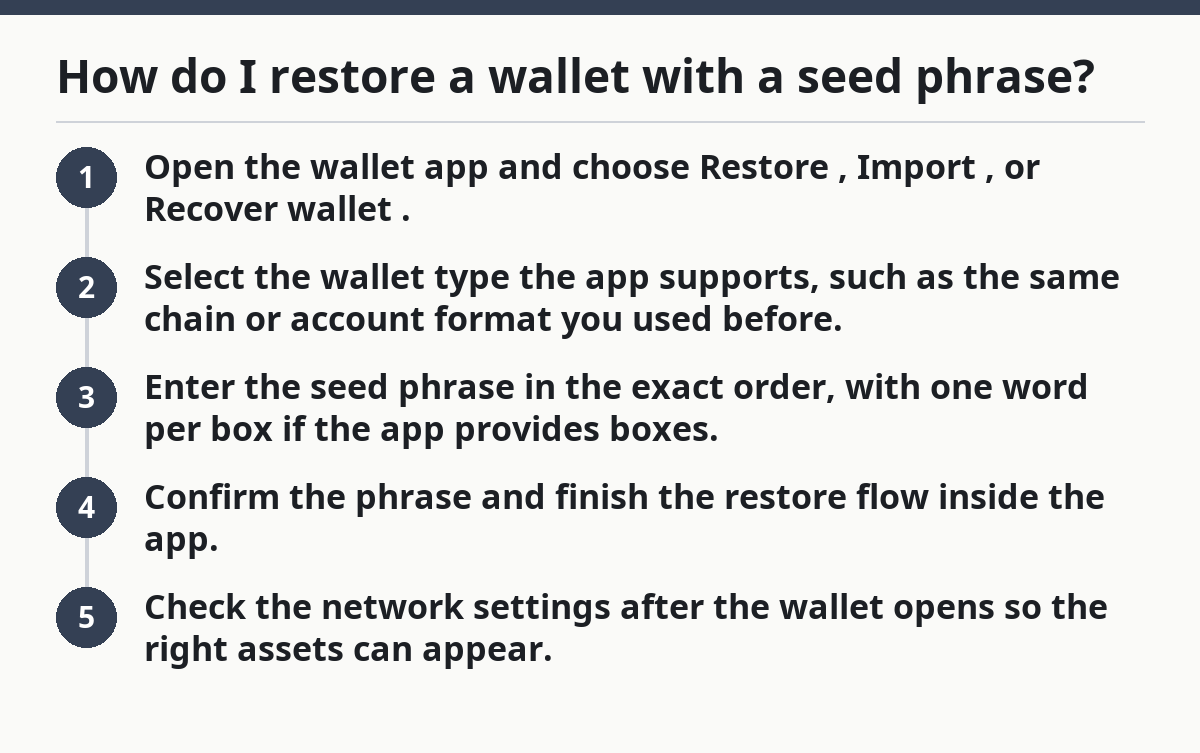
How do I restore a wallet with a seed phrase?
You restore it by opening a compatible wallet app, choosing the recovery option, and typing the seed phrase in the exact order shown. If the app asks for a passcode, local password, or optional extra word, enter that only if you know it was used before.
Picture this: you’re holding the 12 or 24 words on paper, and you just want the wallet back on a phone or laptop. A single word error can send you to a different wallet.
- Open the wallet app and choose Restore, Import, or Recover wallet.
- Select the wallet type the app supports, such as the same chain or account format you used before.
- Enter the seed phrase in the exact order, with one word per box if the app provides boxes.
- Confirm the phrase and finish the restore flow inside the app.
- Check the network settings after the wallet opens so the right assets can appear.
Some apps ask for a 4-digit PIN or device password after the restore. That step protects the app on that device; it is not the seed phrase itself. If the restore screen offers an option for 12, 18, or 24 words, match the phrase length exactly.
The truth is, most restore failures come from a mismatch, not a broken wallet. A phrase from one app can be valid and still not show up cleanly in another app if the app does not support the same chain or address style.
For basic background, see what a seed phrase is. For recovery steps, keep the focus on the app, the words, and the network.
What has to match before the restore will work?
The wallet app, the word order, and the network settings all have to line up. If one of them is off, the restore may succeed on paper but still look wrong on screen.
Picture this: you pasted all 12 words and the app accepted them, yet the balance area shows zero. That can mean the restore worked, but the app is looking at the wrong network or the wrong account path. It can be a display issue, not always a lost-wallet problem.
- Seed phrase length: 12, 18, or 24 words only, depending on how the wallet was created.
- Word order: exact order, no skipped words, no extra spaces.
- Compatible wallet app: the app must support the same blockchain or account format.
- Network settings: the app must be pointed at the correct chain, such as the one tied to the assets you expect to see.
Here’s the catch: a wallet app can support the seed phrase format but still not show every token automatically. Some assets live on a specific network, and some apps hide them until you add the token or switch networks. That does not mean the restore failed.
If you have the original app name, use that first. If you do not, choose a well-known app that clearly supports the chain you need, then compare what the app calls the restore option. Words like import, restore, and recover often mean the same thing in the menu.
For more on wallet setup, see how crypto wallets work. For recovery, the app choice matters as much as the phrase itself.
Why the right order matters more than the right-looking words
The seed phrase is restored by sequence, not by loose matching of words. If the words are all present but one is out of place, the wallet can point to a different account or fail outright.
Picture this: you wrote the words down, but the second and third words got swapped when you copied them back into the app. A one-word change can break the result completely. A seed phrase is not a password you can “mostly” remember.
Use this check before you press confirm:
- Read each word aloud once.
- Compare it against the backup line by line.
- Watch for lookalike words and repeated words.
- Keep the spelling exact, even if a word seems uncommon.
A 24-word phrase gives you more recovery space in one sense, but it also gives you more places to make a mistake. Long phrases are harder to type cleanly on a phone keyboard, especially if the app uses a cramped entry screen. If the wallet app supports paste, use it only if you trust the source you copied from and can verify the phrase after pasting.
Most apps will reject an invalid phrase before they go any further. If the app accepts the phrase and still shows the wrong account, the next place to look is the network or the derivation path, not the spelling alone.
Why do my coins show after recovery?
Your coins may not show because the wallet is restored but the app is looking at the wrong network or hiding the asset list. That is the most common confusion after a successful wallet recovery.
Picture this: the wallet opens, the address looks familiar, and the balance field is blank. You expected the coins to appear right away, but the app may be showing a default chain like Ethereum Mainnet, while your assets sit on another network. The restore can be fine even when the screen looks empty.
Try these checks in order:
- Open network settings and switch to the network where the asset lives.
- Check the account address and compare it with your old wallet address if you saved it.
- Add the token manually if the app does not list it by default.
- Refresh the app or close and reopen it.
- Try the original wallet app if a different app still looks wrong.
Some wallets support several chains, but they do not all display the same assets the same way. A token can exist on the chain and still stay hidden until you add its contract or select the right network. That is why a restore guide that skips network settings leaves people stranded.
Which wallet app should you use for recovery?
You should use a wallet app that supports the same chain and restore format as the wallet you are trying to open. A good fit is one that clearly offers seed phrase recovery for your network, not just a general “crypto wallet” label.
Picture this: you know the phrase is real, but you are choosing between two apps on a download page. One may support the phrase format yet not the account style you need. Another may support the chain but present the balance in a way that hides tokens until later.
Look for these points before you type the words:
- The app names the network you need.
- The restore screen accepts the same phrase length.
- The app supports the address type used by your old wallet.
- The app has network settings you can change after restore.
On the flip side, a wallet app that says it supports “many chains” can still be a poor recovery choice if it does not support the exact account path your old wallet used. That is where a lot of people waste time. The phrase is valid, but the app cannot read it the way your old setup did.
For a broader explanation of what the words mean, the hub article on what a seed phrase is belongs one level up. This page stays on the restore process so you can get the wallet open first.
Common mistakes that break wallet restoration
Most mistakes are small, but they cost time, confidence, and sometimes access to the right account screen. The fix is usually to slow down and check the restore inputs against the backup, one line at a time.
Picture this: you type the phrase, hit confirm, and the app says the wallet is ready. Then the balance is empty, the address looks unfamiliar, or the restore fails after one word. These are usually not random glitches. They usually trace back to one of a few errors.
- Wrong word order — results in a different wallet or a failed restore.
- Misspelled word — the app may reject the phrase or point to the wrong account.
- Wrong network — assets do not appear even though the restore worked.
- Wrong app — the wallet opens, but it does not match the original chain or format.
- Missing optional passphrase — some wallets use an extra secret word; without it, the account will not match.
Here’s the catch: a seed phrase restore does not move funds. It only rebuilds access to the wallet data that the app can read. If the funds seem missing, the more likely issue is visibility, not transfer.
If the app lets you create multiple accounts from the same phrase, check each one. Some wallets show the first account by default, while your real balance sits in a later account index. That is another reason a blank screen is not the same as a lost wallet.
FAQ
Can I restore my wallet on a different device?
Yes, you can restore the wallet on a different device if you have the correct seed phrase and a compatible wallet app. The device itself does not hold the wallet; the phrase does. Use the same app family or a wallet that supports the same network and account type, then check the network settings after recovery.
Why don’t my coins show after recovery?
Your coins may not show because the wallet is on the wrong network, the app is hiding the token, or the account shown is not the one that held the funds. The restore can still be valid. Switch networks, add the token if needed, and compare the address with your old wallet records.
Does restoring a wallet move funds?
No, restoring a wallet does not move funds. It only gives the app access to the wallet using the seed phrase, so the same on-chain assets can appear again. If you send the funds elsewhere after restore, that is a separate transaction and a separate risk.
What if the phrase is accepted but the wallet still looks empty?
The phrase can be correct and the wallet can still look empty if the network setting is wrong or the app is not showing the right account. Check the chain first, then look for another account in the same wallet app. If neither helps, try the original wallet app that created the phrase.
Drafted with AI; not yet reviewed by a person.