
Last updated: November 20, 2026
Quick Answer: you can usually view your trade history in under 3 clicks by opening your crypto exchange’s account records or transactions page, then filtering for completed trades, fills, fees, and dates. This guide is information only, not financial advice; your own tax or reporting rules can differ, so check your situation with a qualified adviser if the records matter for filing or disputes. If you need the broader topic, this article covers How to View Your Trade History on a Crypto Exchange step by step.
Key takeaways
- Trade history is the record of executed trades, not just orders you placed.
- Look for filters like date range, market pair, side, and order status.
- Fees may appear as a separate line, folded into the fill, or shown in a statement.
- If a trade seems missing, check the correct account, time zone, and settlement status.
- Downloaded statements are useful for backups, tax work, and support cases.
What does trade history show?
Trade history shows completed trades, plus the details that explain how each trade was filled. On most crypto exchanges, that means the trade date, asset pair, buy or sell side, price, size, total value, and any fee tied to the fill. It usually does not show open orders that never executed.
This matters because “order history” and “trade history” are not the same thing. An order can sit open for 1 minute or 1 week and leave no executed trade behind until a match happens. A fill is the piece of the order that actually executed, so one order can produce several fills if the exchange matched it in parts.
For record-keeping, trade history is part of your account records. That record may be enough for basic tracking, but tax reporting in some countries often needs more than a plain trade list, such as deposits, withdrawals, and cost basis. Rules differ by country and change often, which is why a local tax authority or qualified adviser may matter here.
Useful references if you are comparing record types: the IRS has guidance on virtual currency transactions, and HMRC has cryptoasset guidance for UK taxpayers. Those pages are not a substitute for advice on your own return, but they show how seriously transaction records are treated. See the IRS virtual currency guidance and HMRC’s cryptoassets pages for context. IRS digital assets guidance, HMRC cryptoassets collection.
How do I find my trade history on an exchange?
You find it by opening the account area, choosing the trading records or transactions section, and narrowing the list to completed trades. The exact labels vary, but the path is usually short and the data is usually filterable by date, pair, and status.
- Open the account menu and select Account records or Transactions. Verify that you are in the same login used for trading. If the menu shows only balances or deposits, you are in the wrong section.
- Choose Trade history, Executed trades, or Fills. Verify that the page lists completed activity, not open orders. If you only see pending orders, the trade has not executed yet.
- Set the date filter to the period you need, such as a single day, 7 days, or a custom range. Verify the start and end dates before you search. If the list looks too short, the range is often the reason.
- Select the market pair or asset, such as BTC/USD or ETH/USDT. Verify that the pair matches the trade you are looking for. If the exchange supports many pairs, a missing filter can hide the right record.
- Switch between buy and sell if the page allows side filters. Verify that the side matches the transaction you remember. If the wrong side is selected, the trade can appear to be missing.
- Review each line for the executed amount, fill price, and fee. Verify that the numbers line up with what you expected from the order. If the trade was filled in parts, look for multiple fill lines rather than one row.
- Open the detail view for any suspicious entry. Verify the timestamp, time zone, and order ID if shown. If the timestamp is off by hours, the page may be using a different time zone from yours.
- Download the statement or export file if the exchange offers one. Verify that the file covers the same date range and account type you just reviewed. If the export is blank or incomplete, check whether you selected CSV, PDF, or the wrong subaccount.
A clean result looks like a list of completed fills that you can match back to an order, a fee, and a date. If the exchange shows only totals, that is less useful for audit or tax work than a fill-level record. Keep the export in a safe place, because account pages can change and history views are sometimes limited.
What should I check before trusting the list?
You should check the account, time zone, and trade type before you treat the list as complete. A trade history page can be accurate and still look wrong if you are viewing the wrong wallet, subaccount, or date window.
First, confirm that you are in the right account. Many exchanges separate spot, margin, futures, and subaccounts, and each one can show a different record set. A trade in one area will not appear in another, even if the asset name is the same.
Second, check the time zone. A trade recorded at 23:30 in one zone may appear on the next calendar day in another zone, which can change daily totals and tax-day grouping. That matters most near midnight, month end, and year end.
Third, look for partial fills. A single order can be split into several fills, each with its own time and fee. If you only count the first line, your totals may be wrong by the size of the later fills.
Fourth, look for fee treatment. Some exchanges show the fee as a separate line, while others fold it into the trade record. If you are comparing records across platforms, that difference can make one list look cheaper or larger than another even when the economics are similar. When the fee format is unclear, consult a qualified tax or accounting professional and compare the exchange’s help pages or export notes before you rely on the figures.
How do fees and fills appear?
Fees and fills can appear as one line, two lines, or a bundled statement entry. The format depends on the exchange, the market type, and whether the trade was executed in one piece or several.
Here is a simple comparison of common views:
| View type | What it shows | What to verify | Common drawback |
|---|---|---|---|
| Order history | Orders you placed | Status, pair, and time | It may include unfilled orders |
| Trade history | Completed trades | Filled amount and price | It may split one order into many lines |
| Fills | Each execution event | Fill size, fee, timestamp | Harder to read without totals |
| Statement export | Account record file | Date range and account type | Can be harder to scan on a phone |
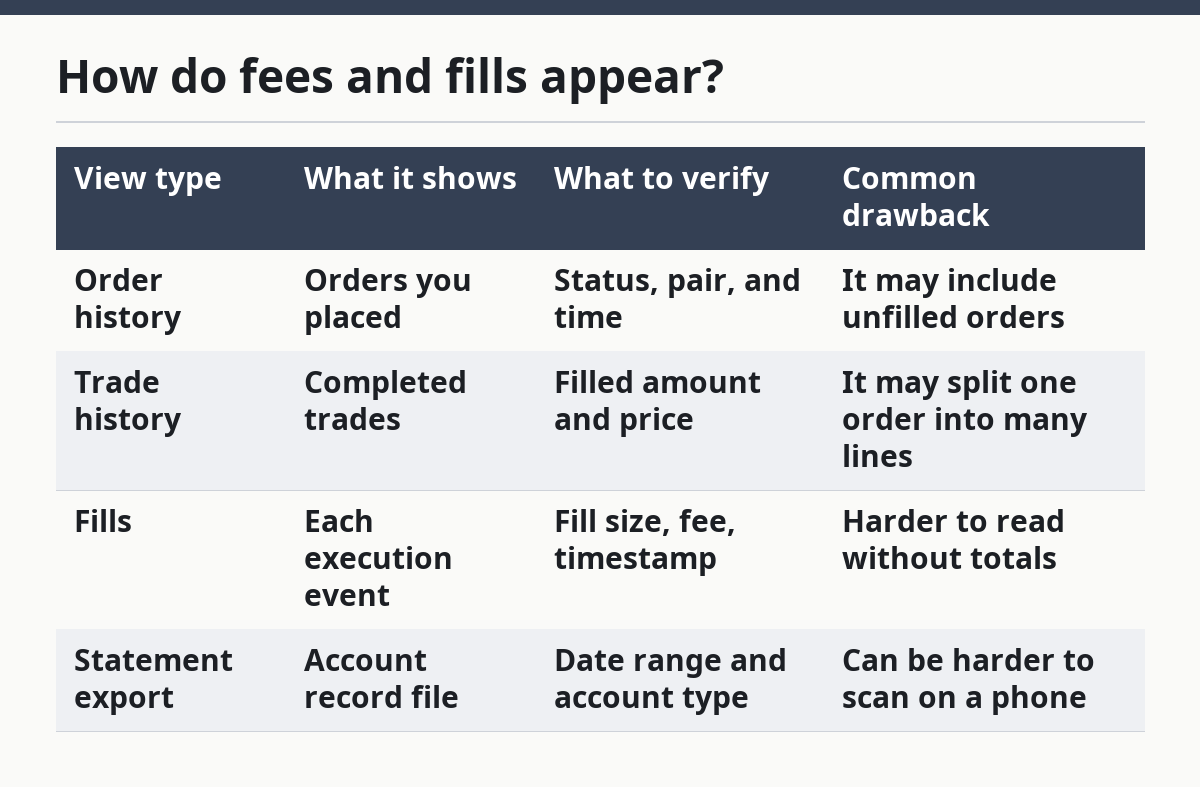
A fee line may show the fee asset, the fee amount, or both. Some records make fees easy to spot, while others bury them in a larger total. If you are matching records across months, use the same format each time so your counts do not drift.
A fill is the useful detail when an order executes in pieces. A 1-unit order can create 2 or 3 fills if only part of it matched at first. That is normal, and it is one reason a trade history page can look busier than an order screen.
What if the trade is missing?
A trade is usually missing because you are looking at the wrong account, the wrong date range, or the wrong status. If the line is absent, that does not automatically mean the exchange lost the record.
A few specific situations explain most gaps:
Wrong account or subaccount: The trade may sit in spot, margin, futures, or another profile. That means you need to switch to the account that actually placed the order.
Wrong date range: The filter may stop a few minutes or hours too early. That means you need to widen the range by at least 1 day on each side.
Wrong time zone: The trade may be assigned to a different calendar date. That means you should compare the exchange’s clock with your local clock before you search again.
Order never executed: The order may have stayed open or expired without a fill. That means there is no trade history line to find, only an order record.
Partial execution still pending settlement: Some markets show a delay before the record becomes visible in the expected place. That means you should check the trade detail page and the account ledger, not just the main list.
What mistakes do people make most often?
People most often confuse an order list with trade history, and that leads to bad assumptions about missing records. The right alternative is to look for executed trades or fills, not just orders placed.
A second mistake is using the wrong date filter. A trade at 00:05 can vanish from “today” if your exchange uses a different time zone, so the correct alternative is to widen the date window and check the timestamp detail.
A third mistake is ignoring partial fills. One trade can appear as 3 lines, which can look like duplicates if you expect only 1. The correct alternative is to add the fills together before comparing totals.
A fourth mistake is overlooking fees. If the fee is taken from the received asset, the net amount may be lower than the gross trade size you remember. The correct alternative is to check whether the fee appears as a separate deduction or a reduced credit.
A fifth mistake is exporting the wrong file type. A PDF may be fine for reading, but a CSV is often easier for sorting and reconciliation. The correct alternative is to choose the format that matches the task, not just the prettiest screen.
When should I stop relying on the screen?
You should stop relying on the screen when the exchange view cannot answer the question you actually have. At that point, the page is no longer enough, even if it looks normal.
You need tax reporting or cost-basis figures: A plain trade list may not include the full accounting detail you need — use the exchange export and, if needed, a qualified tax professional.
The trade involves more than one wallet or subaccount: The screen may show only one slice of activity — gather the full account records before drawing conclusions.
The exchange shows conflicting timestamps or amounts: That can affect reconciliation — compare the exported file, the trade detail, and the ledger before acting on the record.
The trade is part of a dispute or support case: Screenshots are weak evidence on their own — save the export file and any order IDs so the issue can be traced.
The record spans different countries or tax years: Rules and reporting periods can differ — stop guessing and get local advice for the filing rules that apply to you.
Can I export my trade records?
Yes, most exchanges offer an export or download option for trade records, account records, or statements. The usual formats are CSV or PDF, and the better choice depends on whether you need sorting or a readable copy.
A CSV file is easier to filter in a spreadsheet, which helps when you are reconciling many trades over 30 days or more. A PDF is easier to read and share, but it is weaker for sorting by date, asset, or fee. If the exchange allows both, download both and store them with the same date range so the records match.
If the export is incomplete, check whether the exchange limits exports to a single account type or a narrow window. Some systems separate spot activity from other products, so the file may be correct and still feel partial. That is not ideal, but it is common enough that the account type should be checked before you assume there is an error.
For broader guidance on digital asset reporting, the IRS and HMRC each publish public material on crypto transactions and record keeping. Those sources can help you understand why export quality matters even when the on-screen history looks clear. See the IRS digital assets page and HMRC’s cryptoassets guidance for background. IRS digital assets guidance, HMRC cryptoassets collection.
What counts as a trade in history?
A trade in history is an executed exchange between two assets, not just an order you submitted. If no match happened, there is no trade record, only an order record.
That distinction matters because many users expect every order to become a trade. In practice, the order can be open, canceled, expired, or filled in parts. Only the executed piece appears in trade history, usually as a fill or a set of fills.
Can I export my trade records?
Yes, most exchanges let you export trade records as a file, usually CSV or PDF. The file is often more useful than the screen because it can cover a wider date range and be sorted later.
Check that the export includes the right account type, the right dates, and the fee field if you need it. If the file is missing one of those, it may still be valid, but it may not be enough for tax work or a support case.
Why is a trade missing from history?
A trade is usually missing because the filter is wrong, the account is wrong, or the order never filled. A time zone mismatch can also move the trade to a different date than you expected.
Start with the basics: widen the date range by 1 day on each side, switch between spot and other account types, and open the order detail if the exchange shows one. If the record still does not appear, use the export file or account ledger, because the problem may be the view, not the trade.
Drafted with AI; not yet reviewed by a person.