Last updated: November 20, 2026
Quick Answer: Restore the wallet in 6 steps: install the same wallet app, choose the same network, enter the seed phrase exactly, compare the address, test a small action, and secure the new phone. In this guide to How to Restore a Crypto Wallet on a New Phone, the phrase and network matter more than the handset. If the wallet holds meaningful value or your setup is unusual, consult a qualified professional before moving funds.

Restore the wallet by reinstalling the same wallet app on the new phone, choosing the same network, and entering the seed phrase or backup phrase exactly as it was saved. After that, check the wallet address against the old phone or another trusted record before you send any funds.
Key takeaways
- A new phone does not create a new wallet by itself; the backup phrase does the restoring.
- The wallet app matters, but the phrase and the network matter just as much.
- A wrong network or one missed word can make the wallet look empty or incorrect.
- Verify the address before any transfer, even if the app says the restore worked.
- If the old phone still works, use it as a reference point before you move money.
Who should do this themselves?
This applies to someone who still has the seed phrase or backup phrase and can use the wallet app on a new phone. It also assumes the person knows which network the wallet used before, such as the same chain the app showed on the old device.
This guide is for device migration, not for lost-wallet recovery. If the phrase is missing, unreadable, or partly guessed, the right move changes fast; that is the point where the problem is no longer a normal phone change. This is information, not financial advice, and a qualified adviser should be consulted for your own situation if the wallet holds meaningful value or your setup is unusual.
The biggest mistake here is treating the new phone like a fresh start. A crypto wallet is tied to keys, not to the handset model, so the phone is only the tool that reads the keys. The old device, if still available, can help confirm the app name, the network name, and the exact address before anything is moved.
For broader safety checks, see the crypto wallet security guide and seed phrase backup tips.
What should be ready before you start?
You should have the wallet app name, the seed phrase or backup phrase, and the old phone if it still turns on. You should also know whether the wallet used one network or more than one, because the same wallet app can show different addresses on different networks.
If the wallet is on a new phone, gather the recovery details before you begin. A 12-word phrase is common, and 24 words also appear in many wallets. Use the app store listing from the official developer, not a search result copied from memory.
If the app needs a PIN, passcode, Face ID, or fingerprint on the old device, have that ready too. If the app was installed from a specific store on the old phone, use that same store on the new one so you avoid look-alike apps.
The phrase needs exact wording and exact order. One swapped word, one extra space, or one wrong sequence can lead to a different wallet. If the phrase is typed from paper, check each word against the app’s accepted word list if it provides one.
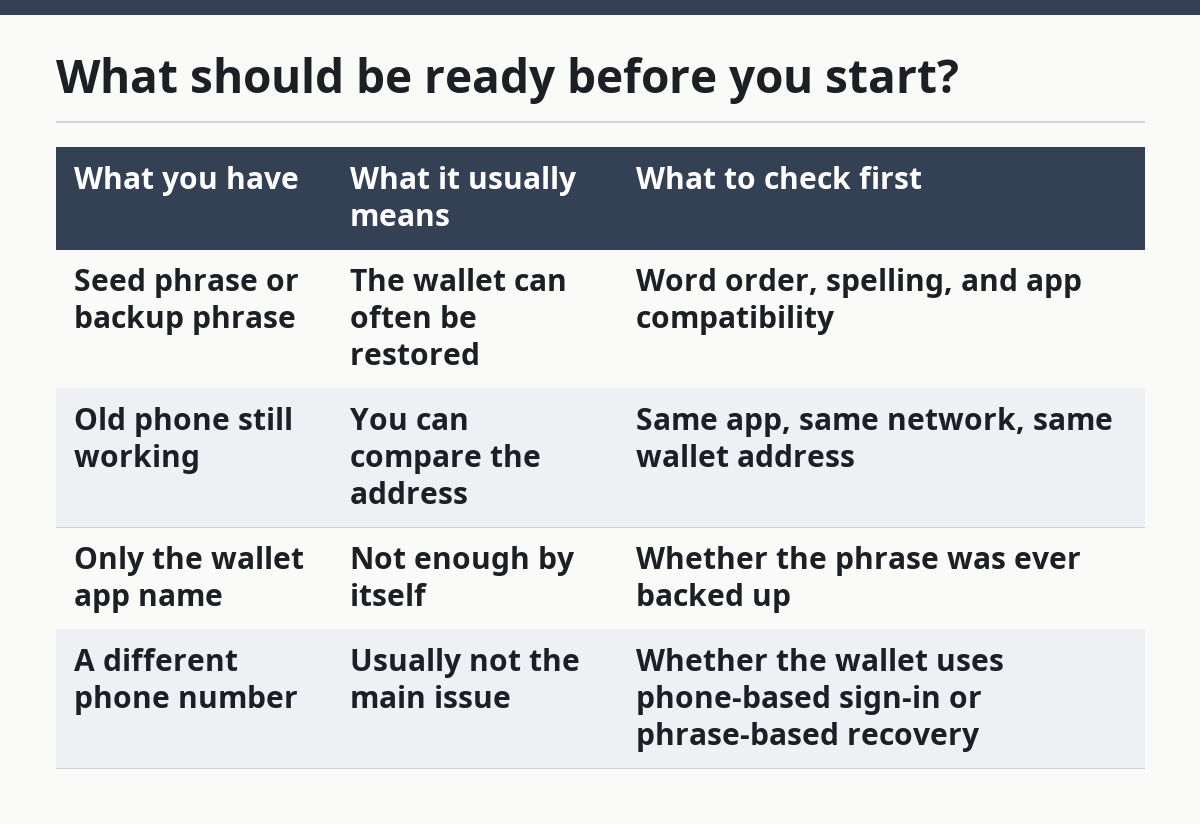
A useful comparison is this:
| What you have | What it usually means | What to check first |
|---|---|---|
| Seed phrase or backup phrase | The wallet can often be restored | Word order, spelling, and app compatibility |
| Old phone still working | You can compare the address | Same app, same network, same wallet address |
| Only the wallet app name | Not enough by itself | Whether the phrase was ever backed up |
| A different phone number | Usually not the main issue | Whether the wallet uses phone-based sign-in or phrase-based recovery |
How do you restore a crypto wallet on a new phone?
You restore a crypto wallet on a new phone by installing the wallet app, choosing restore or import, entering the phrase, and checking the address before doing anything else. The steps below keep the process in the right order.
- Install the wallet app: Download the exact wallet app from the official app store listing, then open it and verify the developer name. If the app name is close but not exact, stop, because a look-alike app can lead to the wrong wallet or a loss of access.
- Select restore: Tap the option for restore, import, or recover wallet rather than “create new wallet.” If the app starts by making a fresh wallet, that is a sign the restore flow has not begun yet.
- Choose the same network: Set the network to match the old wallet before you enter the phrase if the app asks for it. If the wallet used the wrong chain, the balance can look missing even when the phrase is correct.
- Enter the seed phrase: Type the seed phrase or backup phrase in the exact order shown on the original record, with no added words and no missing words. If the app rejects a word, the phrase may be wrong, incomplete, or copied from the wrong wallet.
- Confirm the wallet address: Compare the restored address with the old phone or another trusted record after the app opens. If the address does not match, stop and recheck the phrase, network, and wallet type before moving on.
- Test a small action: Review a small receive or send screen first, without approving a transfer, so you can see that the wallet is opening the same account. If the app shows a different account name or a new empty wallet, the restore likely did not land on the right keys.
- Secure the new phone: Turn on the phone lock, app lock, and any wallet passcode the app supports after the wallet is restored. If the phone is left opened, the wallet can be exposed even though the phrase was entered correctly. If you are unsure which settings to enable, consult the wallet provider’s help pages or a qualified professional.
- Remove the old device access: Sign out of the wallet app on the old phone only after you have confirmed the new phone shows the right address. If both devices stay active, anyone with access to the old phone can still open the wallet app.
The first check is the address, not the balance. A wallet can show a zero balance on the wrong network or the wrong account while still being fully restored on another screen. That is why the address comparison matters more than the first page you see after login.
If the app uses multiple accounts under one phrase, the first restored account may not be the one you used before. Scroll through account names carefully and compare each address, since some apps store more than one wallet under the same recovery phrase. The wrong account often looks “broken” when it is only the wrong branch of the same wallet setup.
What mistakes break the restore?
The most common mistakes are the ones that look harmless at first and then cost time or access. In this process, a small mismatch can make the wallet look empty, wrong, or unrecognized.
Using the wrong app: A look-alike wallet app can restore a different account or expose the phrase to the wrong software — use the official app listing and verify the publisher name.
Choosing the wrong network: The wallet may open, but the expected balance can disappear from view — switch to the same network the old phone used before you judge the restore.
Typing the phrase in the wrong order: One misplaced word can create a different wallet — enter the phrase exactly as written and check each word before you continue.
Stopping at the first blank screen: An empty-looking wallet is often a network or account issue, not proof that the restore failed — compare the address before changing anything else.
Forgetting the old phone check: Without a second reference, it is easy to trust the wrong account — use the old device, if it still works, to confirm the address and app details.
A fast restore can work. A careful restore protects the wallet from a wrong-network mistake or a wrong-app mistake. CISA and the FTC both warn about phishing and crypto scams that often start with fake apps or fake support.
When should you stop and check again?
You should stop when the restore produces a result that does not match the old wallet or the phrase you have. These are the moments when pushing ahead usually makes the problem harder.
The phrase is incomplete: Missing words mean the restore may land in the wrong wallet — pause and locate the full backup before doing anything else.
The app asks for extra recovery details you do not remember: That usually means this is not the same wallet setup — stop and compare the wallet type, not just the app name.
The address on the new phone does not match the old phone: The restore may have opened a different account — recheck the network and the phrase order before sending funds anywhere.
The old phone and new phone show different balances on the same account: The app may be showing different networks or different accounts — verify the network label and account index first.
The app behaves differently after a reinstall: A fresh install can change the default screen or network — do not assume the wallet is gone until the restore path is complete.
If the wallet holds a large amount or the setup uses a custodial account, phone-based login, or a provider-specific recovery method, the standard restore flow may not apply. In that case, the safest move is to use the wallet provider’s official recovery path and get qualified help for your own situation rather than guessing.
What changes if the old phone still works?
The old phone makes verification much easier because it gives you a second view of the same wallet. You can compare the address, the account name, and the network before you trust the new device.
If the old phone still opens the wallet app, use it as the reference point first. Check the address string, the account label, and the chain or network name side by side with the new phone. If they do not match, the problem is usually in the restore step, not in the funds themselves.
A common edge case is a phone that still opens the wallet but cannot receive a message or code. That matters only if the wallet relies on phone-based sign-in. If the wallet uses a seed phrase, the phone number may not be the key factor at all.
For more recovery context, see phishing and scam warnings and wallet account setup basics.
How do you know the restore worked?
The restore worked when the new phone shows the same wallet address and the same network as the old device. That is the cleanest proof that the wallet opened the right account.
Do not use the balance alone as proof. A balance can look wrong on the wrong network, on the wrong account, or before the app finishes loading all account data. If the address matches and the network matches, the wallet is far more likely to be correct than if only the balance looks familiar.
A final check is to lock the phone and reopen the app once. If the same address returns after relaunch, the restore is stable enough to trust for normal use. If the app keeps changing accounts or forgetting the network, the setup still needs review before any transfer.
Do I need the same app to restore my wallet?
Usually, yes. The same wallet app is often the safest place to restore because apps can handle accounts and networks differently, even when they support the same phrase format.
A different app may still accept the phrase, but it can show a different interface, different network labels, or a different default account order. If you change apps, confirm the address and network line by line before trusting the result.
What if I changed phone numbers?
A phone number change does not automatically block a phrase-based restore. The seed phrase or backup phrase is usually the main recovery method, not the number itself.
The exception is a wallet or account setup that uses phone-based sign-in or recovery as part of the login flow. If that is the case, the restore steps can change, so check the wallet’s official recovery path before you proceed.
How do I know the restored wallet is correct?
The restored wallet is correct when the address on the new phone matches the address on the old phone or another trusted record. The network should match too, because the same wallet can look different on different chains.
If the address is different, do not send funds yet. Recheck the phrase order, the app, and the network, then compare the account again before making any transfer.
FAQ
Can I restore a crypto wallet on a new phone without the old phone?
Yes. If you have the seed phrase or backup phrase, you can usually restore the wallet on the new phone without the old device.
How many words are in a seed phrase?
Many wallets use 12 words, and some use 24 words. Enter every word in the exact order.
Why does my balance look empty after restore?
The wrong network or wrong account is the most common reason. Check the address first, then the network label.
Should I use the same wallet app?
Usually yes. It reduces the chance of a different account order or a different network view.
What should I do before moving funds?
Compare the restored address with the old phone or another trusted record, then run a small test only if the address matches.
Drafted with AI; not yet reviewed by a person.