
Last updated: November 19, 2026
Key Takeaways
- Exchange support usually fails in five areas: sign-in, mailbox access, mail flow, sync, or permissions.
- The usual triage order is identity, mailbox access, then message flow, because those layers catch most tickets.
- The main operations are access, recovery, delegation, and lifecycle management.
- If mail flow is broken, trace the message path before changing the mailbox.
Exchange account operations and support, the Complete Guide, means fixing login, mail flow, sync, permissions, and recovery problems without turning a simple outage into a bigger mess. This guide to Exchange account operations and support gives a quick answer: start with the symptom, check status, isolate the account, and apply the least disruptive fix first. It focuses on Exchange account operations and support for identity, mailbox access, and message flow, with practical steps you can use on the first pass.
What actually breaks in Exchange account support?
Exchange account support usually breaks in one of five places: authentication, mailbox access, message flow, sync, or permissions. If you know which layer failed, you can stop guessing and cut the fix time from hours to minutes.
Picture this: you’re staring at a report that says “mail is down,” but the user can still open Outlook, mobile sync works for some people, and only one shared mailbox is missing. That is not one problem. It is a routing, auth, or permission problem, and the answer changes fast. A practical first move is to separate server-side from account-side failures before you touch anything else.
Here’s the catch: a generic “recreate the profile” fix can make a permissions issue harder to trace. Use the failure type first.
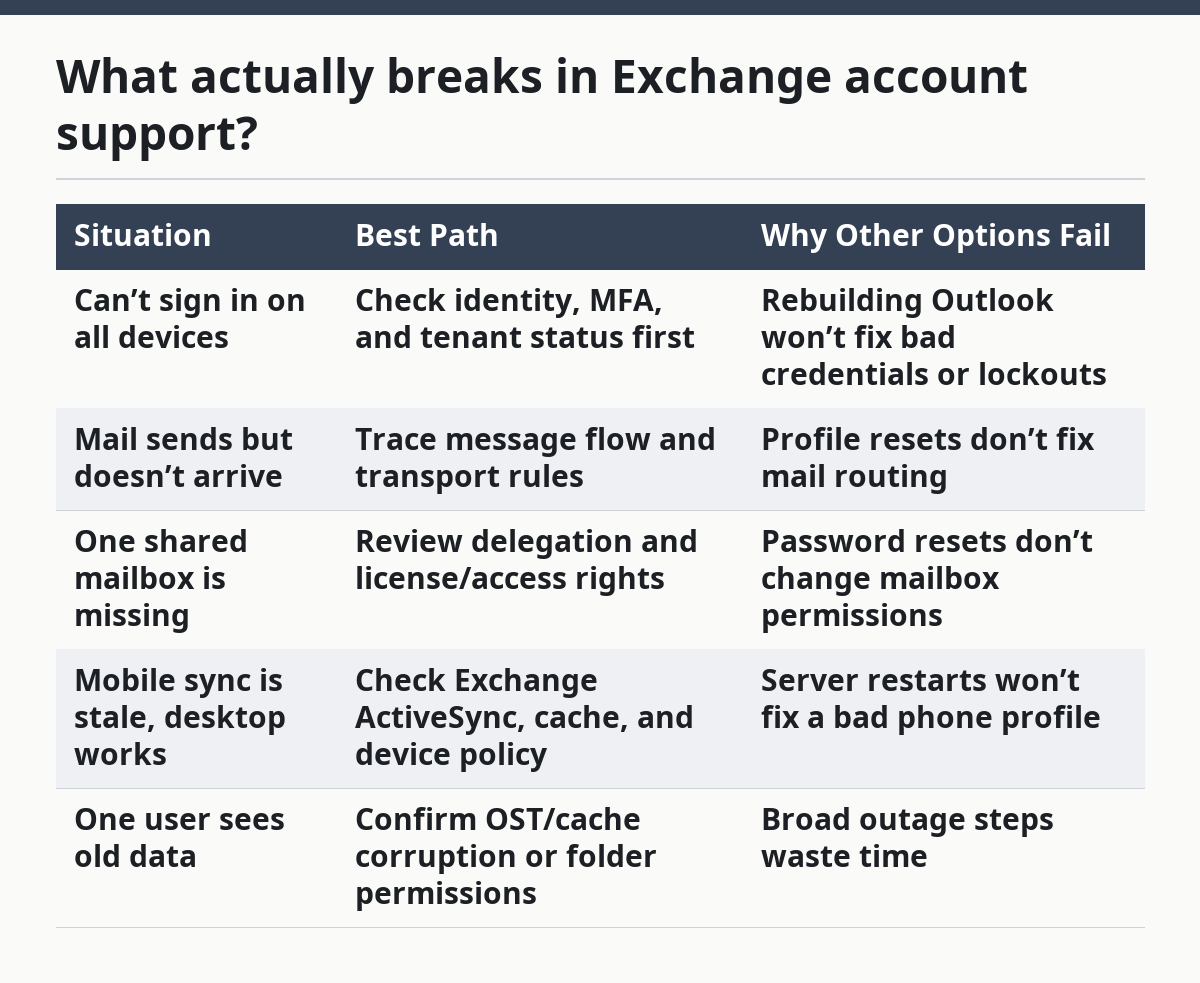
| Situation | Best Path | Why Other Options Fail |
|---|---|---|
| Can’t sign in on all devices | Check identity, MFA, and tenant status first | Rebuilding Outlook won’t fix bad credentials or lockouts |
| Mail sends but doesn’t arrive | Trace message flow and transport rules | Profile resets don’t fix mail routing |
| One shared mailbox is missing | Review delegation and license/access rights | Password resets don’t change mailbox permissions |
| Mobile sync is stale, desktop works | Check Exchange ActiveSync, cache, and device policy | Server restarts won’t fix a bad phone profile |
| One user sees old data | Confirm OST/cache corruption or folder permissions | Broad outage steps waste time |
If you’re not sure where to start, use this order:
- Confirm the exact symptom in the user’s words.
- Check service health or tenant status.
- Test sign-in in a browser and on a second device.
- Compare one working account and one broken account.
- Change only one thing at a time.
- Retest before moving deeper.
Quick check: if one mailbox, one device, or one folder is affected, this is likely an account-level issue, not a full Exchange outage.
How do you triage an Exchange account problem without making it worse?
You triage an Exchange account problem by checking identity, mailbox access, and message flow in that order, because those three layers cover most support tickets. If the first layer is broken, the rest of the checks are noise.
Picture this: you’re on the phone with a user who says Outlook “stopped working” five minutes before a meeting. If you start with Outlook repairs, you may miss a tenant-wide authentication issue or a blocked account. The better path is boring but fast: prove where the failure sits before you change settings. In Microsoft 365, that often means checking the Microsoft 365 Service health page and then testing the same account in Outlook on the web.
A browser sign-in test is often the quickest way to separate client trouble from account trouble. If the mailbox opens in the browser but fails in the desktop app, the problem is usually client-side, cached credentials, or a profile. If the browser also fails, look at sign-in blocks, licensing, mailbox state, or MFA.
Use this sequence:
- Confirm the exact error text, not a paraphrase. “Password wrong” is not the same as “mailbox unavailable.”
- Check whether the account can sign in to Outlook on the web.
- Check service status or admin center alerts for Exchange Online incidents.
- Verify the user has the right license and mailbox type.
- Test from a second network or device to rule out local policy issues.
- Only then reset the Outlook profile, cached credentials, or device token.
A few tools matter here: Microsoft 365 admin center, Exchange admin center, Outlook on the web, and message trace. Microsoft documents mailbox and message-trace workflows in its support and admin guides, and NIST’s digital identity guidance is useful when you are sorting authentication failures; see the NIST Digital Identity Guidelines and Microsoft Exchange Online documentation.
Quick check: if the mailbox opens in webmail but not in the desktop app, this is usually a client or profile issue, not a server outage.
Which account operation are you actually dealing with?
You are dealing with one of four operations: access, recovery, delegation, or lifecycle management. If you name the operation correctly, the support path gets much shorter and the wrong fix stops looking tempting.
Picture this: you’re asked to “give the intern access” and then discover they need read-only access to one shared mailbox, send-as rights on another, and no license at all. That is a support request plus an administration request plus a security request. The right answer changes depending on whether the person needs to read mail, send mail, recover access, or leave the company.
The mistake most teams make is treating every request like a password issue. That is risky, so if the request involves identity recovery, delegation, retention, or lifecycle changes, consult your organization’s IT/security team and use Microsoft’s Exchange guidance as a source. Passwords are only one piece. Exchange operations also include mailbox permissions, alias management, retention settings, archive access, and mailbox moves. In Microsoft Exchange, these sit in different panes and sometimes different admin roles. The user does not care; the support flow does.
| Operation | Best Path | Why Other Options Fail |
|---|---|---|
| Forgotten password or locked sign-in | Identity recovery and MFA reset | Mailbox changes won’t restore sign-in |
| Can read but not send as a mailbox | Delegate Send As or Send on Behalf permission | Profile repair won’t create rights |
| Missing folder or old items | Check sync state, retention, or moved items | Password reset misses mailbox content issues |
| User left the company | Disable access, preserve mailbox, reassign ownership if allowed | Deleting first can break data retention |
Use this decision path:
- Identify whether the person needs access, recovery, delegation, or cleanup.
- Confirm the mailbox type: user, shared, resource, or archive.
- Check whether the user is licensed and licensed correctly.
- Review assigned permissions: Full Access, Send As, Send on Behalf.
- Check whether the issue is in Outlook, webmail, or both.
- Document the change and retest.
On the flip side, if the request involves a former employee or legal hold, do not treat it like a standard service ticket; consult your compliance or legal team and follow Microsoft retention guidance. Retention and compliance rules change the steps.
Quick check: if the request includes “share,” “forward,” “send as,” “archive,” or “recover,” you are in operations territory, not simple support.
What should you do if mail flow is broken?
If mail flow is broken, you should trace the message path before changing anything on the mailbox itself. Message flow problems live in transport, connectors, rules, DNS, or filtering, and those are different from user access problems.
Picture this: you’re told external customers never got an invoice, but internal users can still send mail to each other. That points away from a user mailbox and toward transport. If the email left the Outbox but never arrived, the fix may be in a rule, connector, spam filter, or domain setting. A mailbox reset will not help.
Here’s the catch: mail flow can fail in one direction only. Inbound mail may work while outbound mail is blocked, or the reverse. That’s why message trace matters. In Exchange Online, message trace shows where the message stopped, and that is often faster than checking every connector by hand.
Use this path:
- Capture the sender, recipient, subject, and exact send time.
- Run message trace for the message in Exchange admin tools.
- Check whether transport rules, journaling, or mail flow rules touched it.
- Review connectors, accepted domains, and DNS records if the message never left the system.
- Check quarantine and filtering if the message reached security layers but not the inbox.
- Fix the narrowest cause and retest the same message path.
A few common culprits show up often: a bad transport rule, a typo in an accepted domain, a connector that points to the wrong smart host, or an external spam policy that quarantines mail. Microsoft’s Exchange message trace and mail flow documentation is the right reference point here; the Microsoft Learn Exchange admin content is the place to start.
Quick check: if some messages send and others disappear, this is probably a rule, connector, or filtering issue—not a broken mailbox.
What if the user can sign in but Outlook still misbehaves?
If the user can sign in but Outlook still misbehaves, the problem is often the client profile, cached credentials, or local device policy. That is the case where a browser test saves time and a full reinstall is usually overkill.
Picture this: you’re looking at a laptop that opens Outlook, then freezes, then prompts for a password again, while Outlook on the web works normally. That pattern points to the desktop client, not Exchange itself. The same is true when one PC has sync lag and another PC with the same account is fine.
The standard fix sequence is simple, but the order matters. Start with the lightest touch. A deep repair before a profile reset can waste time, and a profile reset before checking cache corruption can leave the same problem in place. If the mailbox is healthy in webmail, your target is local state.
Use these steps:
- Verify the account works in Outlook on the web.
- Clear cached credentials in the operating system credential store if the sign-in loop repeats.
- Create a fresh Outlook profile.
- Check for add-ins that hang startup or send/receive.
- Confirm the user’s device policy is not blocking modern authentication.
- Rebuild the OST only if the profile is stable but folders are stale.
Two specific standards help frame this work: modern authentication and MFA policy. If the tenant requires MFA, the desktop client can fail in ways the browser does not. If device compliance is enforced, Outlook may refuse access until the device meets policy.
Quick check: if webmail works and Outlook doesn’t, start with the profile, cached credentials, and add-ins before you touch the mailbox.
How do permissions and delegation actually work?
Permissions and delegation work by separating who can read, who can send, and who can manage the mailbox. If you confuse those rights, support tickets bounce around for days.
Picture this: you’re asked to give an assistant access to a manager’s mailbox, but the assistant also needs to send messages as that manager and see the calendar. Those are different rights in Exchange. Full Access lets a person open the mailbox. Send As lets them send as that mailbox. Send on Behalf lets the recipient see both names. Calendar rights may still need separate assignment.
This is where many generic guides get sloppy. They say “grant access” and stop there. That is not enough. A user who can open a mailbox may still fail when replying from it. A user who can send may still not see subfolders. A shared mailbox may need more than one permission and, depending on the environment, may need a license if it crosses certain feature boundaries.
Use this sequence:
- Identify the exact task: read, send, manage, or delegate.
- Confirm whether the mailbox is shared, user-based, or resource-based.
- Assign the narrowest permission that fits the job.
- Test from the recipient view and the sender view.
- Check auto-mapping behavior if Outlook is used.
- Remove stale permissions when the job ends.
This is usually fixable without changing the password or reimaging a device. If the person needs broad access across multiple mailboxes, a role-based admin setup is safer than ad hoc rights on every mailbox.
Quick check: if the user says “I can open it, but I can’t send from it,” you need send rights, not full access.
Edge cases where the normal advice breaks down
Edge cases matter because the standard flow fails when identity, compliance, or device policy changes the rules. If any of the situations below fit, stop following the ordinary playbook and switch paths.
Picture this: you’re following the usual fix list, but the mailbox still behaves strangely even after a profile reset and a clean browser test. That is the moment to ask what makes this account different from the others. A legal hold, hybrid setup, stale device token, or migration state can change the answer.
-
Recently migrated mailbox → The move may still be settling, or the Outlook profile may be holding old Autodiscover data.
What changes: you must check migration state and recheck Autodiscover.
What to do instead: verify the migration batch, wait for completion if it is still moving, and rebuild the profile only after the move finishes. -
Hybrid Exchange environment → Some settings live on-premises and some live in the cloud.
What changes: a cloud-only fix may not touch the real source of truth.
What to do instead: confirm where the object is mastered before editing permissions or proxy addresses. -
Former employee mailbox → Access, retention, and legal hold can override the usual disable-and-delete flow.
What changes: compliance rules may require preservation for months or longer.
What to do instead: suspend access, preserve the mailbox, and follow retention policy before deleting anything. -
Shared mailbox overgrowth → A shared mailbox can become a dumping ground with huge folders and messy delegation.
What changes: performance and governance become part of the support problem.
What to do instead: clean permissions, review archive use, and split high-volume mail into a process mailbox if needed. -
Strict MFA or conditional access policy → A device can look healthy and still be blocked.
What changes: identity policy, not Exchange, is the gatekeeper.
What to do instead: inspect sign-in logs, device compliance, and authentication method status before touching mail settings. -
Mobile-only failure → The phone can lose its token or policy sync while desktop keeps working.
What changes: the device enrollment and sync layer become the target.
What to do instead: remove and re-add the account on the device, then verify policy compliance and Exchange ActiveSync settings.
Quick check: if the account was migrated, inherited, shared, held for legal reasons, or limited by MFA policy, treat it as an edge case.
What does good Exchange account support look like day to day?
Good Exchange account support is repeatable, documented, and narrow. If the same issue happens twice, the support trail should show what was checked, what changed, and what fixed it.
Picture this: you’re handed a ticket with only “email broken” in the notes and no sign of what was tested. That is how the same incident gets solved three times. A strong support process records the symptom, the scope, the checks, and the outcome. It also keeps a line between user support and admin changes.
Use a simple operating pattern:
- Record the symptom in the user’s words.
- Tag the issue as access, flow, sync, or delegation.
- Check service health and identity status first.
- Fix one thing, then retest.
- Note the change, the time, and the result.
- Escalate only when the next layer is clearly outside your role.
For teams that run Exchange at scale, Microsoft’s admin tools and audit logs are part of the job, not optional extras. Change logs, message traces, and sign-in logs tell you whether the fix was real or accidental. If you skip them, the next support person starts blind.
There’s also a human side. Users remember speed, but what really saves time is clarity. “Your password was fine; the account was blocked by MFA policy” is a better outcome than “try again later.” The second answer burns trust.
Quick check: if your support notes do not show symptom, scope, action, and result, the process is too loose.
FAQ
Why can Outlook on the web work when the desktop app fails?
Outlook on the web can work when the desktop app fails because the browser uses a fresh sign-in path and avoids local cache problems. That usually points to a damaged profile, cached credentials, or an add-in in the desktop client. If webmail works, focus on the device first.
What is the fastest way to tell if this is a mailbox issue or a service issue?
The fastest way is to compare one broken account with one known-good account and check the service health page. If multiple users fail in the same way, the issue is likely service-side or tenant-wide. If one user alone fails, start with identity, permissions, or local client state.
When should a shared mailbox be treated like a permissions problem?
A shared mailbox should be treated like a permissions problem when the user can see the mailbox but cannot open folders, send mail, or access the calendar. Those symptoms usually mean the rights are incomplete, not that Exchange is down. Check Full Access, Send As, and Send on Behalf separately.
What should I check first if mail leaves the outbox but never arrives?
Check message trace first. That tells you where the message stopped—transport rule, connector, quarantine, or recipient-side filtering. If you skip trace and jump straight to password or profile changes, you’ll waste time on the wrong layer.
Do I always need to recreate the Outlook profile?
No. Recreating the profile is useful when webmail works and the desktop app does not, but it is not the first move for every issue. If the problem is sign-in policy, permissions, or mail routing, a profile rebuild will not fix it.
Drafted with AI; not yet reviewed by a person.