
Last updated: November 20, 2026
Exporting transaction records from a crypto exchange usually means opening your account history, choosing a date range, and downloading a CSV file or account statement. If your goal is taxes, reconciliation, or proof of activity, the key is to export the right record type: trades, deposits, withdrawals, or a full history export.
This is information, not financial advice. Crypto tax rules and record rules vary by country and change often, so a qualified adviser should review your own situation if the records will affect a return or reporting duty.
Key takeaways
- Start with the exchange’s history or reports area, not the trade screen.
- Choose the record type that matches your need: trades, deposits, withdrawals, or a full statement.
- CSV files are the most flexible format for sorting and tax work.
- Date range, asset filters, and timezone settings can change what appears in the export.
- Save the file right away and check that it opens cleanly before you close the page.
Who this applies to
This applies to anyone who can log in to a crypto exchange and needs a record of account activity for their own files, tax prep, or reconciliation. It assumes you already have access to the account, know your login details, and can pass 2-factor authentication if the exchange asks for it.
It does not assume the exchange looks the same everywhere, because platforms label this area differently. One site may say History, another may say Reports, Statements, or Tax documents. The task is the same either way: find the records area, choose the right date range, and export the file in a format you can open.
This process is for people who need transaction records, not for people trying to close an account, change identity details, or resolve a support case. It also is not the right move if you are unsure which records you need for tax filing; in that case, a tax adviser can tell you whether you need trade reports, deposit history, withdrawal history, or a full account statement.
A good export should show enough detail to identify the date, asset, quantity, fees, and transaction type. If your file leaves out those fields, it may still download correctly but fail the job you need it for.
How do I export transaction records from a crypto exchange?
You export transaction records by opening the exchange’s history or reports section, setting the date range, selecting the record type, and downloading the file in CSV or PDF format. The exact buttons differ, but the flow is usually the same across major platforms.
- Log in to the exchange and complete 2-factor authentication if prompted. Verify that you are in the correct account before you go further; if you manage more than one wallet or profile, the wrong account can produce the wrong history.
- Open the reports, history, or statements area from the account menu. Verify that the page includes transaction records, not just price charts or open orders; if you only see trading screens, you are in the wrong place.
- Choose the record type you need: trade report, deposit history, withdrawal history, or account statement. Verify that the label matches your purpose; if you need tax work, a partial history can be incomplete.
- Set the date range for the period you want. Verify the start and end dates before exporting; if the range is too short, the file will miss transactions and may not match your totals.
- Select the file format, usually CSV file or PDF. Verify that the format fits the use case: CSV is easier to sort and filter, while PDF is better as a printable account statement; if the exchange only offers one format, that limits what you can do next.
- Apply any filters for asset, account, or transaction type. Verify the filters are still active on the export screen; if the exchange resets them, the file may include records you did not want or exclude the ones you needed.
- Download the export and save it to a named folder on your device. Verify that the file opens and the rows are readable; if the download fails, try a different browser or export again after refreshing the page.
- Check the file contents against the date range and transaction count shown on the screen. Verify that trades, deposits, and withdrawals appear where expected; if amounts are missing, duplicated, or shown in the wrong currency, the export is not ready to use.
That is the core process whether the exchange is mobile-first or desktop-based. Some platforms let you generate a report instantly, while others queue the request and email the file later. If a file arrives by email, confirm it came from the exchange’s own system before opening it.
What records can I export?
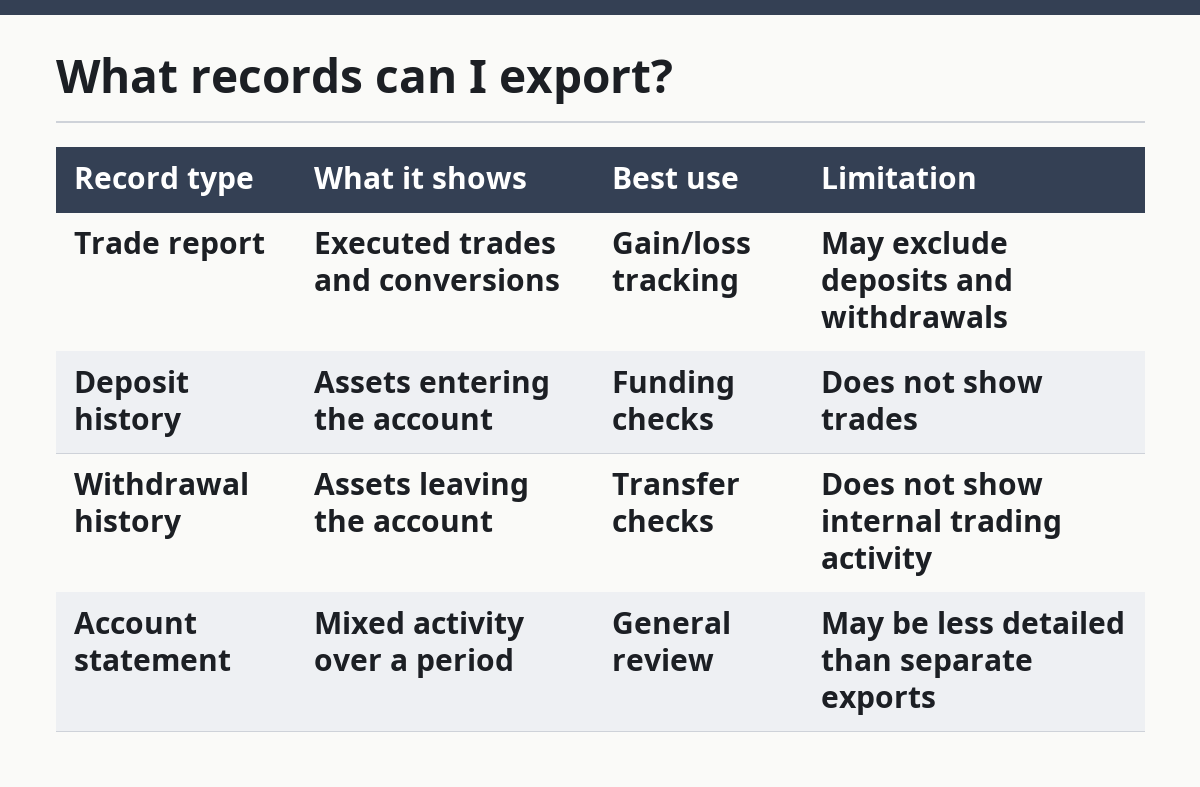
You can usually export trade reports, deposit history, withdrawal history, and a broader account statement. Those four records are not the same, and using the wrong one is a common reason people think the export feature is broken.
A trade report shows buys, sells, or conversions. A deposit history shows money or crypto entering the account. A withdrawal history shows money or crypto leaving the account. An account statement is the broadest view and may combine several activity types in one file.
The most useful format for later sorting is usually CSV, because spreadsheet software can filter columns and calculate totals. A PDF can be easier to read line by line, but it is harder to sort if you need to check 50 or 500 transactions. If you are doing tax prep, the exchange’s own labels may not match your country’s reporting categories, so the file is a starting point, not the final answer.
Here is the practical difference:
| Record type | What it shows | Best use | Limitation |
|---|---|---|---|
| Trade report | Executed trades and conversions | Gain/loss tracking | May exclude deposits and withdrawals |
| Deposit history | Assets entering the account | Funding checks | Does not show trades |
| Withdrawal history | Assets leaving the account | Transfer checks | Does not show internal trading activity |
| Account statement | Mixed activity over a period | General review | May be less detailed than separate exports |
If the exchange offers a tax report, that can be useful, but it is still not always the same thing as a full transaction export. Tax reports may group activity in a way that suits a filing system, while raw exports show the underlying entries. That difference matters when you need to reconcile totals by hand.
What should I check before I download?
You should check the date range, the account, the timezone, and the export format before you click download. A wrong setting at this stage can make the file look complete while still leaving out part of the record.
Date range is the first thing to confirm. If you want a full yearly record but only export one quarter, the file will be technically correct and practically useless. Timezone matters too, because transactions near midnight can fall into the wrong day if the exchange uses a different setting than your own records.
Account selection matters when you have multiple portfolios, subaccounts, or wallets. Some exchanges let you export from one account at a time, which means a single file may not cover everything you hold on the platform. If the screen lets you choose an account or wallet, check that choice before you continue.
File format matters as well. CSV works best if you need to sort by asset, date, or fee. PDF works better if you want a clean printable statement for your records. If the exchange offers both, export both when the task is important, because one file may reveal something the other hides.
A final check is the transaction type list. If the page lets you export only trades, that will not replace a deposit or withdrawal history. For tax or reconciliation work, the difference between those records can change the result.
When should I stop and ask for help?
You should stop and get qualified help when the export feature cannot produce the records you need, or when the records may affect a tax return or legal filing. The issue is not just convenience; the wrong file can lead to wrong reporting.
The exchange does not offer the record type you need: Some platforms only show a limited history on screen or in downloads — use the exchange’s help resources or ask a tax adviser how to reconstruct the missing period.
The date range stops before your full activity period: Older records may not be available from the export tool — request a statement from support or keep your own records going forward.
The file omits fees, timestamps, or transaction IDs: Missing fields make reconciliation harder — check whether a different report format exists before assuming the data is lost.
You see transfers between your own accounts and cannot tell what counts as a trade: Internal movements can look like deposits or withdrawals — pause and get help from a tax professional if the distinction changes your reporting.
The export shows values in a different currency than your records: Currency conversion can change totals — verify the base currency and ask an adviser how to translate the figures correctly.
The exchange asks for extra verification before export: Security checks can block access until you pass them — complete the verification only through the exchange’s own interface, not through email links you did not expect.
Those are the points where a simple download stops being simple. If the file is for taxes, the safest move is to match the export with country-specific guidance from your tax authority or a qualified accountant, because rules differ by country and can change.
What mistakes do people make?
People most often export the wrong record, choose the wrong date range, or assume one file covers every wallet on the account. Each mistake leads to missing entries, and missing entries are harder to fix after the filing deadline or after you have already built a spreadsheet.
One common error is downloading only a trade report when the task also needs deposits and withdrawals. The result is a partial picture that can make balances look wrong. The fix is to export each relevant record type separately, then compare them.
Another mistake is picking the wrong format for the job. A PDF may look neat, but a CSV file is often easier to sort and reconcile. If the file will be used in a spreadsheet, CSV is usually the better first export.
A third mistake is ignoring timezone settings. A transaction that lands just before midnight in one timezone can move to the next day in another, which can change daily totals. The fix is to check the exchange timezone before exporting and keep that setting in mind when you compare records.
A fourth mistake is forgetting that some exchanges split activity across subaccounts or product types. Futures, margin, spot, and wallet transfers may not appear together. If the record set looks too small, search for a second export area before assuming the data is missing.
A fifth mistake is saving the file without opening it. A download can finish successfully and still contain blank rows, a corrupted file, or the wrong date range. The correct step is to open the file immediately and confirm that the headings, amounts, and dates are readable.
What if the standard export does not fit?
The standard export does not fit when the exchange uses a special report system, limits history by product, or splits records across account types. In those cases, you need to change the approach rather than force one file to do everything.
If the exchange separates spot, margin, and derivatives, export each section on its own. A single account statement may not combine them cleanly, and trying to merge them too early can blur the source of each transaction. If you need a complete picture, keep the exports separate until you have checked them line by line.
If the exchange only gives a screen view with no download, use the available export tool or account statement feature if one exists. If neither exists, the problem may be a platform limit rather than a user error. That is the point to ask support for a formal statement, especially if the records are needed for a tax return or audit trail.
If the exchange offers an API export, that can provide structured data, but it is usually more technical than a CSV download. API means application programming interface, and it is meant for software tools rather than casual manual review. Use it only if you already know how to handle structured data, because the raw output can be harder to read than a normal statement.
If the account has very old records, the exchange may not let you pull the full period in one file. In that case, export by smaller date blocks, such as month by month or quarter by quarter, and combine the files yourself. That is slower, but it is better than assuming one incomplete export is complete.
How do I know the export worked?
The export worked if the file opens, the date range is correct, and the visible totals match the screen or statement area. A good result is not just a successful download; it is a file you can actually use.
Look first at the headers. A usable CSV or statement should show clear column names such as date, type, asset, quantity, fee, and status. If the headings are missing or scrambled, the file may have been opened in the wrong program or downloaded incorrectly.
Then compare a few visible transactions against what you know is on the account. If the same trade, deposit, or withdrawal appears with the right date and amount, the export is likely usable. If the numbers are off by one day, one decimal place, or one currency unit, stop and recheck the settings.
A working export should also be saved in a place you can find later. Name the file with the exchange name and date range so you do not confuse it with other downloads. That small step saves time when you need the record again months later.
What records can I export from an exchange?
You can usually export trade reports, deposit history, withdrawal history, and an account statement. Some exchanges also offer tax-style reports that group activity for reporting, but those are not always the same as the raw transaction history. If you need a complete picture, export more than one record type.
Are export files different from tax reports?
Yes, export files and tax reports can serve different jobs. A CSV export usually shows the raw transaction data, while a tax report may reorganize that data for filing purposes. If the report will affect a return, a tax adviser should confirm which version your country accepts.
How far back can I download history?
That depends on the exchange and the account type, and there is no universal cutoff. Some platforms keep long histories, while others limit what you can download on screen or in one file. If older records matter, export them as soon as you can and save local copies.
Drafted with AI; not yet reviewed by a person.