Last updated: November 20, 2026
Quick answer: try 3 fixes first — restart the phone, update the app and operating system, and free up at least some storage before you reinstall. If your crypto wallet app won’t open, start with the device and app basics, then try reinstalling only if you have your backup or seed phrase ready. If the app still crashes, the problem is usually compatibility, storage, or a damaged app install — not the wallet data itself.
Key takeaways
- Start with the smallest fix first: restart, update, and check storage before changing anything bigger.
- A wallet app that will not open is often a phone or app problem, not a lost wallet problem.
- Do not delete or reinstall the app until you know how to restore the wallet with your seed phrase or backup.
- If the app fails right after an operating system update, the app may need its own update before it will load.
- Stop guessing if the phone is old, the app is unsupported, or the crash repeats after reinstalling.
Who is this for?
This is for a person with a crypto wallet app on a phone or tablet and the app will not launch, freezes on the logo, or crashes before the home screen loads. It assumes you still have the device, can open it, and may have a seed phrase, backup, or login details somewhere safe. This is information rather than financial advice; for your own situation, especially if money is at risk, a qualified adviser or the wallet provider’s support team may be the right next step.
This guide also assumes the problem is access to the app itself, not a lost wallet or a forgotten seed phrase. That difference matters because the fix for a bad app install is not the same as the fix for missing backup data. A wallet app that will not open is often repairable in a few minutes, but only if you do not erase the one thing that can restore it.
If you are using a very old phone, a jailbroken or rooted device, or a device with limited free storage, the standard fix may fail. In those cases, the issue may be the operating system or the device’s security state, not the wallet app. A wallet app that depends on local encryption can be sensitive to changes in iOS or Android, so the app may need a compatible version before it will launch.
What should I try first?
Start with the quickest checks before you touch the wallet data. A restart, an app update, or freeing up some storage can fix a launch failure without changing anything important. Apple’s and Google’s support pages both recommend basic restart-and-update steps for problem apps, and Android’s guidance also points users to clear space when the device is low on storage. The goal is to get the app open while keeping your seed phrase and backup untouched. (Source: Apple Support Google Play Help)
-
Force close the app, then open it again. On iPhone or Android, close the wallet app from the app switcher and relaunch it once. Verify that the app gets past the logo screen. If it freezes in the same place twice, the problem is deeper than a one-time glitch.
-
Restart the mobile device. Power the phone fully off, wait about 30 seconds, then turn it back on. Verify that other apps open normally after the reboot. If the phone itself lags, reboots, or shows low-memory warnings, the issue may be with the device, not the wallet.
-
Check for an app update. Open the App Store or Google Play and install the newest version of the wallet app. Verify that the app version changes after the update. If the store says the app cannot be updated, that can mean the app is no longer compatible with your operating system. (Source: Apple Support Google Play Help)
-
Check the operating system version. Open the phone settings and compare the device’s iOS or Android version with the app’s stated minimum. Verify that the phone can still receive updates. If the OS is too old, the app may stop opening even if nothing is wrong with your wallet.
-
Free up storage space. Remove a few large files or unused apps until the device has room to breathe; many phones struggle when storage is nearly full. Verify that the wallet app has room to unpack files and cache data. If the device is near full, the app can crash before it loads.
-
Check the internet connection. Switch between Wi‑Fi and mobile data, then try again. Verify that other apps can reach the internet. If the wallet opens only on one network, the issue may be a blocked connection, a VPN, or a network filter.
-
Try the app again after a short wait. If the app store, device, or wallet service is having a temporary issue, wait 10 to 15 minutes and retry. Verify whether the crash pattern changes. If nothing changes after several tries, stop repeating the same action and move to the next fix.
-
Reinstall only after you confirm your backup or seed phrase. Delete the app, reinstall it from the official app store, then restore the wallet inside the app. Verify that you can reach the restore screen and enter the seed phrase or backup correctly. If you do not have the backup data, do not remove the app yet.
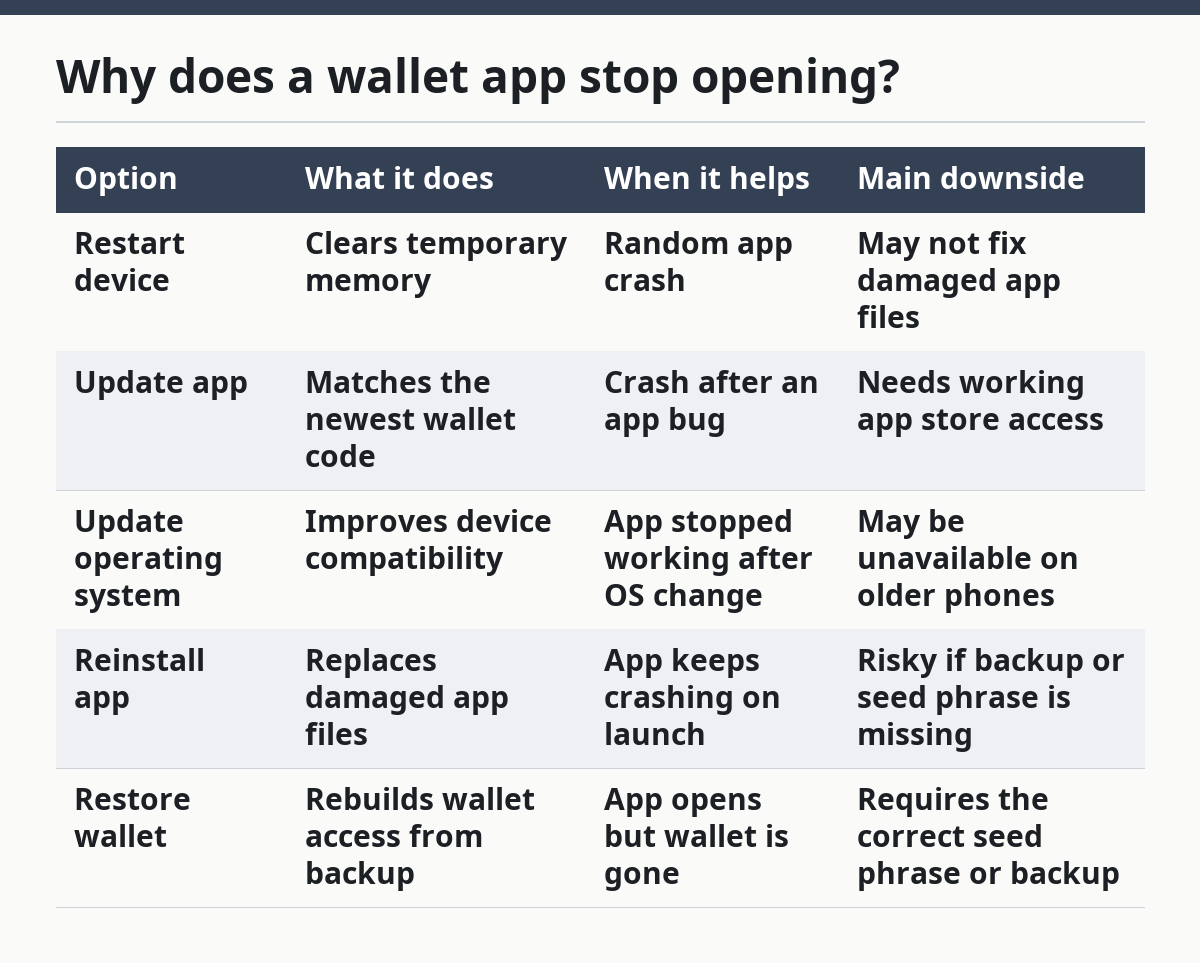
Why does a wallet app stop opening?
A wallet app usually stops opening because the app install, the operating system, or stored app data no longer matches what the app expects. The most common causes are an outdated app, an older phone OS, low storage, a corrupted cache, or a bad update. In a crypto wallet app, the wallet data is often encrypted, so the app may refuse to load if the device or app environment has changed.
Cache is temporary data the app stores so it can load faster. When that cache becomes damaged, the app may crash at launch or freeze on a splash screen. A corrupted install can do the same thing, which is why reinstalling often helps after the backup is confirmed.
A bad password, missing seed phrase, or wrong wallet account can also create confusion, but those are not the same as the app failing to open. The app must first launch far enough to ask for the login or restoration details. If it never gets that far, the fault is usually technical, not account-based.
| Option | What it does | When it helps | Main downside |
|---|---|---|---|
| Restart device | Clears temporary memory | Random app crash | May not fix damaged app files |
| Update app | Matches the newest wallet code | Crash after an app bug | Needs working app store access |
| Update operating system | Improves device compatibility | App stopped working after OS change | May be unavailable on older phones |
| Reinstall app | Replaces damaged app files | App keeps crashing on launch | Risky if backup or seed phrase is missing |
| Restore wallet | Rebuilds wallet access from backup | App opens but wallet is gone | Requires the correct seed phrase or backup |
What if the app still crashes?
If the app still crashes after the basic checks, the next step is to test whether the problem is the app install, the device, or the wallet data. A wallet app that crashes after reinstalling on the same phone points to a compatibility problem more than a one-off app error. A wallet that opens on a different device but not your own device also points to the phone.
Check the wallet provider’s status page or support notices if they have one. A service-side outage can stop login or sync features even when the app itself is installed correctly. If the app opens but freezes after a server error, the issue may be temporary and not tied to your wallet backup.
If you use a VPN, ad blocker, private DNS, or security app, turn it off for one test. Some wallet apps are sensitive to network filters because they need to reach their servers quickly during launch. If turning it off helps, the fix is not the wallet itself — it is the network path the app uses.
If the app shows an error after an operating system update, do not assume the wallet is broken. The app may need its own update, or the wallet provider may not support that OS version yet. In that case, the correct move is to use a supported device or wait for the app developer to release a compatible version.
When should I stop trying the same fix?
Stop repeating the same steps when the app crashes in the same way after a restart, update, and reinstall attempt. At that point, repeating the same move only risks wasting time and, if you remove the app too early, losing the easy path back in. The question is no longer “Will this open?” but “What is the safest path to restore access?”
- You do not have the seed phrase or backup: it means reinstalling could trap you outside the wallet — stop before deleting anything and look for the backup first.
- The phone is too old for the current operating system: it means the app may no longer be supported — use a compatible device or the provider’s supported restore method.
- The app crashes immediately after a fresh reinstall: it means the issue is probably device compatibility or a deeper phone problem — do not keep deleting and reinstalling.
- The wallet only fails on one phone but works on another: it means the device is the problem — focus on the phone, not the wallet.
- The app asks for recovery data you cannot find: it means restoration depends on details you do not have — stop and use the wallet provider’s recovery guidance or support path.
If the problem involves a large balance or you are unsure which wallet version you used, it is reasonable to slow down and get help from the wallet provider or a qualified adviser before making changes. A wrong move here can turn a simple app issue into a harder access problem.
How do I restore access after an app crash?
Restore access after an app crash by reinstalling the wallet app from the official store and using the backup or seed phrase during setup. A seed phrase is the recovery words that rebuild the wallet inside the app; without it, reinstalling can leave you unable to open the same wallet again. This is why the restore step comes after the backup check, not before it.
Open the app after reinstalling and choose the restore option, not the new-wallet option. Enter the recovery words exactly as stored, in the correct order and spelling. Verify that the restored wallet shows the correct account and network before moving any funds or making any changes.
If the app offers cloud backup, account login, or device sync, treat those as separate from the seed phrase and review the provider’s help pages before relying on them. Some wallet apps use both local recovery data and account-based sign-in, and the safest path is to confirm that method with the wallet provider or a qualified professional if you are unsure. If one method fails, the other may still work, but the app must support that path.
For readers building a better mental model of wallet access, the hub page on wallet access, backups, and recovery gives the broader framework. This page stays focused on the device and app failure itself, because that is the problem most people face first.
Will uninstalling a wallet app delete my funds?
Uninstalling the app does not erase the blockchain account itself, but it can remove the local app data needed to reopen it. If the wallet depends on a seed phrase or backup, make sure you have that before deleting anything. Without it, the app may be gone before you can restore the same wallet.
Should I reinstall my wallet app?
Reinstalling can help when the app files are damaged or the crash repeats after an update. Do it only after you confirm the backup or seed phrase is available and readable. If the phone is the real problem, reinstalling may not change anything.
How do I restore access after an app crash?
Install the app again from the official store, open the restore flow, and enter the recovery details exactly as saved. Check that the wallet loads the correct account and network before you rely on it. If the app still will not open, the issue may be device compatibility or a deeper system fault.
Drafted with AI; not yet reviewed by a person.